
Home
Your dashboard when you sign in — a snapshot of active projects, budgets, and tasks that need attention.
How to read your dashboard
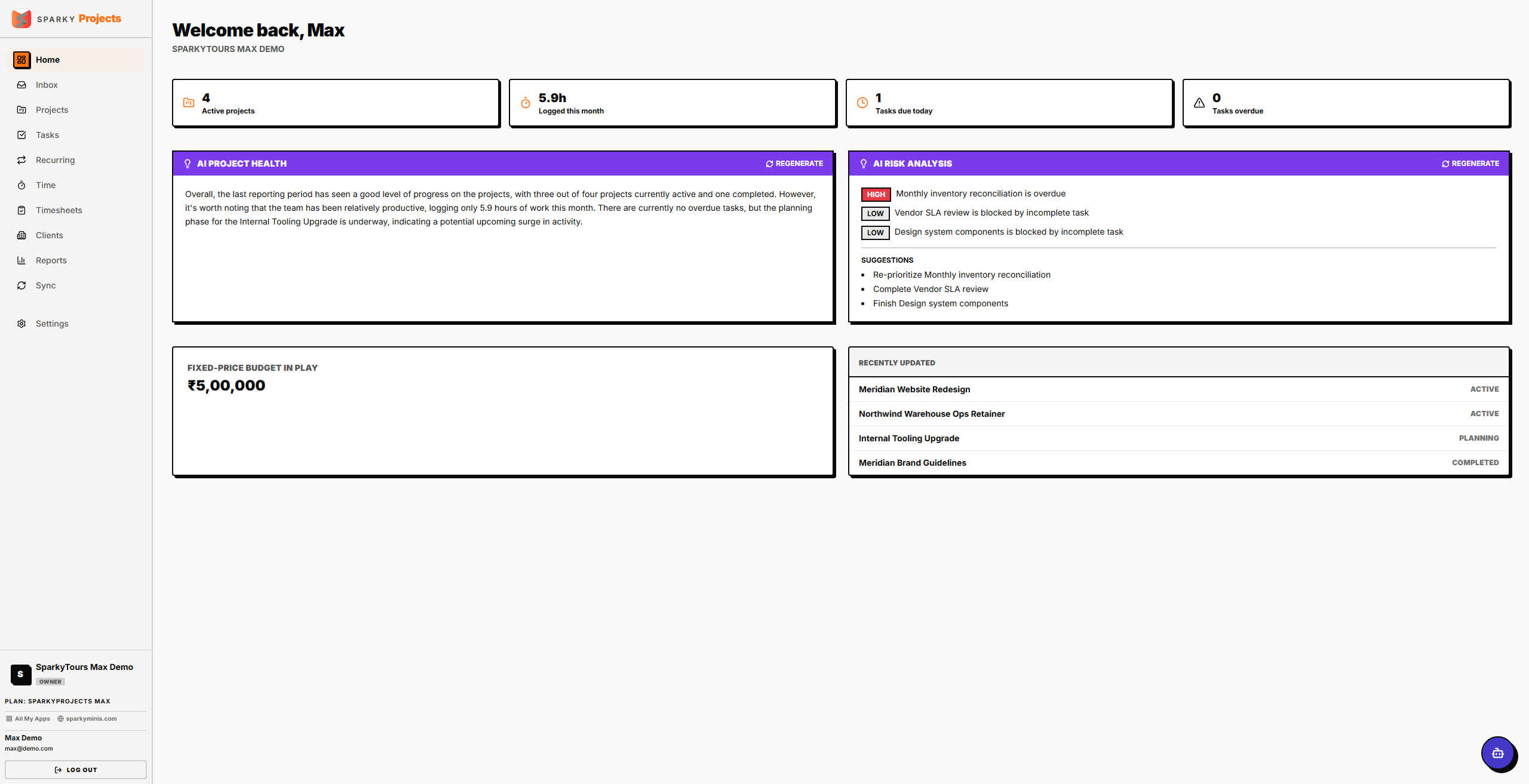
When you open SparkyProjects, you land on Home. It shows how many projects you have active (and in total), a rolled-up budget total across your fixed-price projects (converted into your organization's base currency if some projects use a different one), tasks due today, overdue tasks, hours logged this month, and your five most recently updated projects.
How to get an AI project health summary
If your plan includes AI Insights, Home also shows an "AI Project Health" panel — click "Generate summary" for a plain-language readout of how your active projects are tracking, based on your task load and hours logged this month. Once generated, "Regenerate" refreshes it. This is available on Plus and Max plans.
How to check for scheduling risk (Max)
If your plan includes it, Home also shows an "AI Risk Analysis" panel — click "Analyze risks" to scan your upcoming tasks for ones blocked by other incomplete work, with a severity and a suggested next step for each. This is available on the Max plan.
How to finish setting up your organization
If your account doesn't have an organization set up yet, Home shows a short setup prompt instead of your stats. Enter your organization's name and submit — this activates your organization and takes you to the normal dashboard.