
Projects
Where you set up and run each piece of client or internal work — budget, billing, milestones, and everything tracked underneath it.
How to view all projects
Open Projects from the sidebar. You'll see every project with its status, billing mode, client, budget or rate, and target end date. Archived projects are listed too, grouped after active ones.
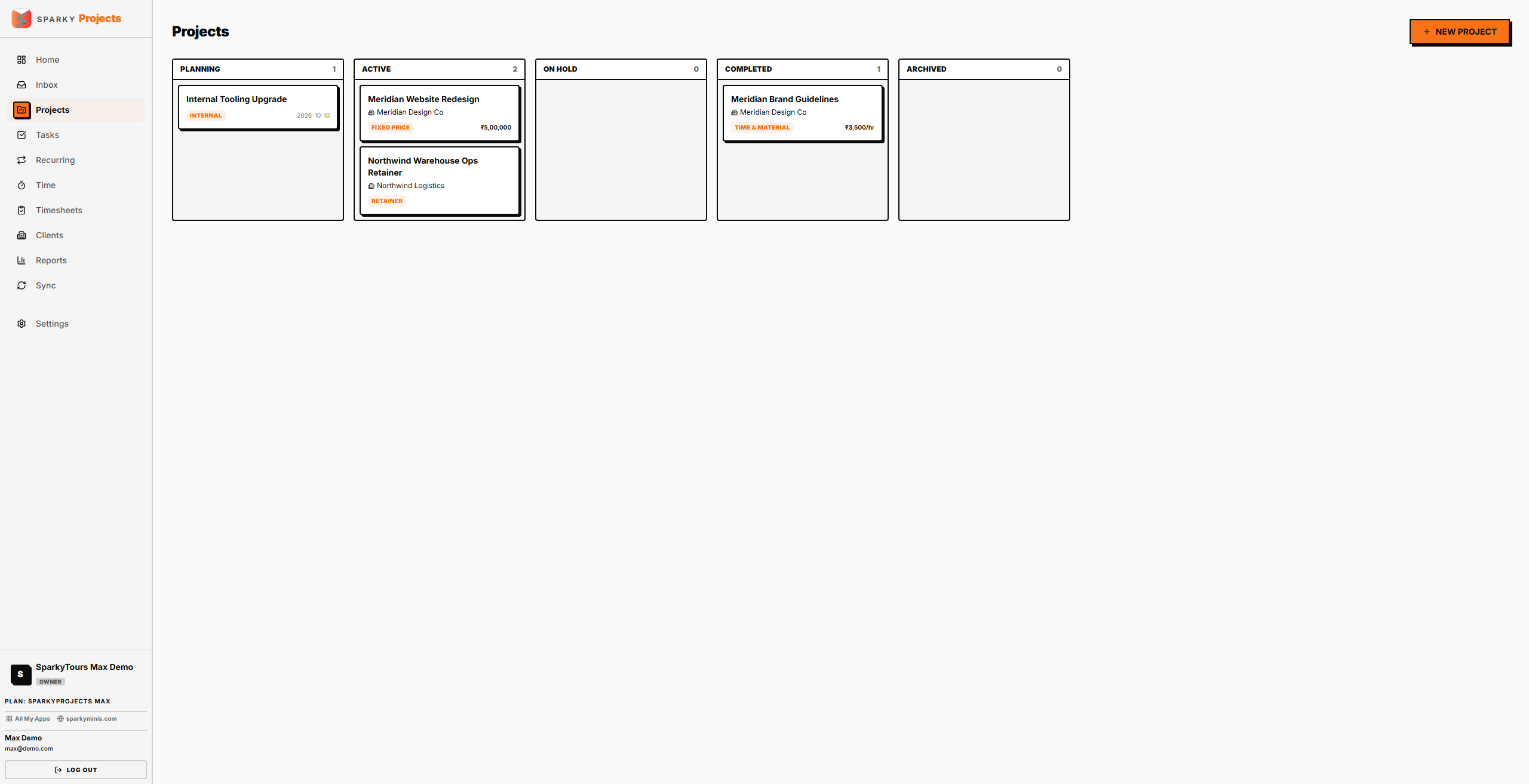
Sprints/Phases are labeled "Sprints / Phases" in the product itself, and Milestones/Sprints share the project detail page below the main fields.
How to create a project
Click "New Project." Only a name is required. Pick a billing mode — Internal, Fixed Price, Time & Material, or Retainer (the last two need the Plus or Max plan). You can also set a client, budget, hourly rate, currency, and start/target-end dates. If your plan has reached its active-project limit, creating a new one is blocked with an upgrade prompt.
How to change a project's status
From the Projects list or a project's own detail page, change its status (e.g. Active, On Hold, Done — your organization's own configurable list).
How to view and edit a project
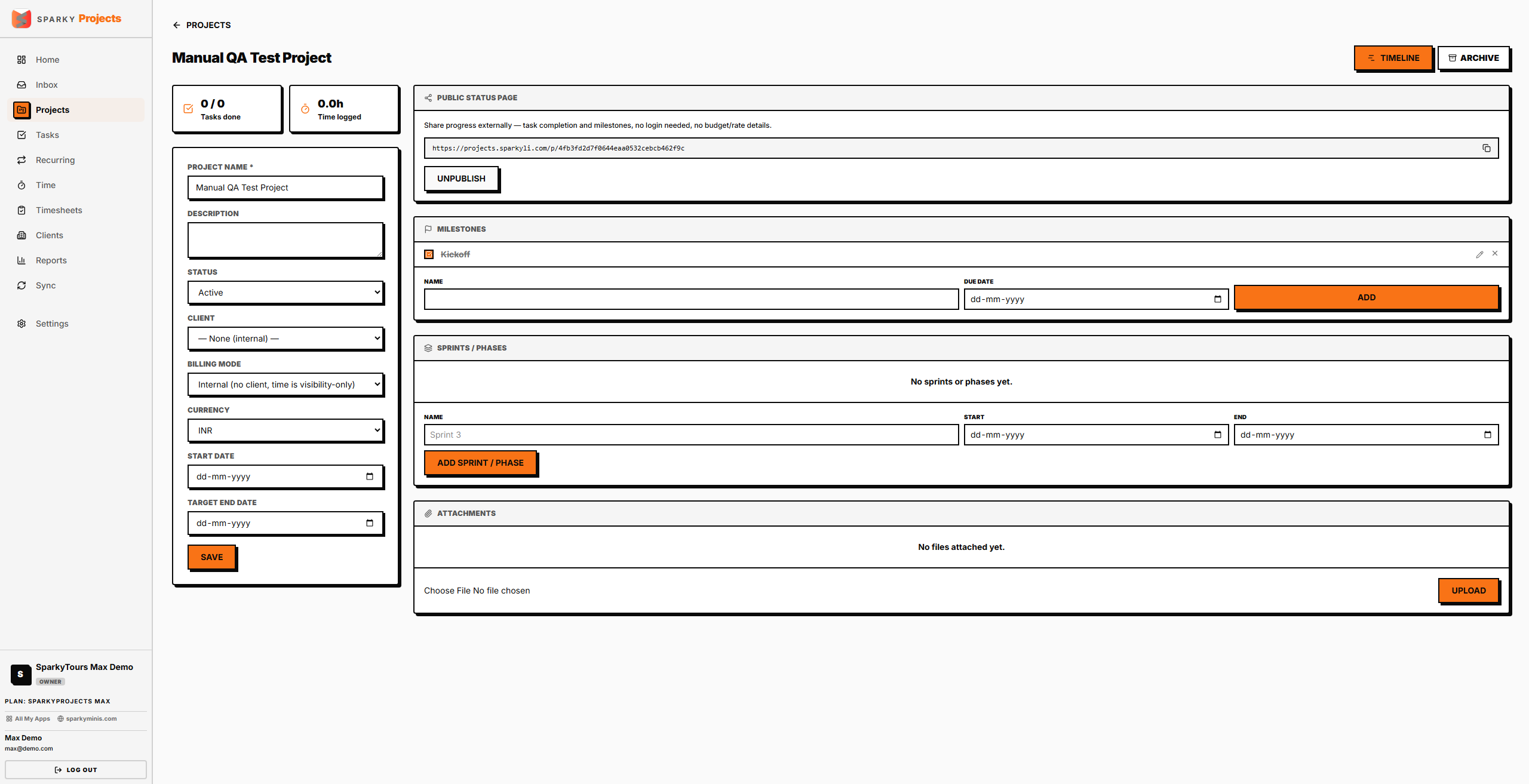
Click a project to open its detail page. You'll see task and time-logged summaries, and — if your plan includes them — Milestones and Sprints/Phases (Iterations). Editing lets you change the name, description, client, billing mode, budget, rate, currency, status, and dates.
How to archive or restore a project
From a project's detail page, click Archive when the work is done, then confirm — a project can't be un-archived by accident, but nothing is deleted, and you can restore it any time from the archived filter. Restore it the same way.
How to share a project with your client
From a project's detail page, click "Publish" under "Public status page" to generate a public link showing project status, task progress, and milestones — no budget, rate, or client details are included. Turning it off disables the link; publishing again later reuses the same link rather than generating a new one.
How to manage milestones
If your plan includes Milestones, add one (name and optional due date), mark it done or not done, edit it, or remove it — all from the project detail page.
How to manage sprints/phases (iterations)
If your plan includes Iterations, add one (name and optional start/end dates) to the project detail page, and see task progress roll up per iteration. Edit or remove an iteration the same way.
How to view a project's timeline
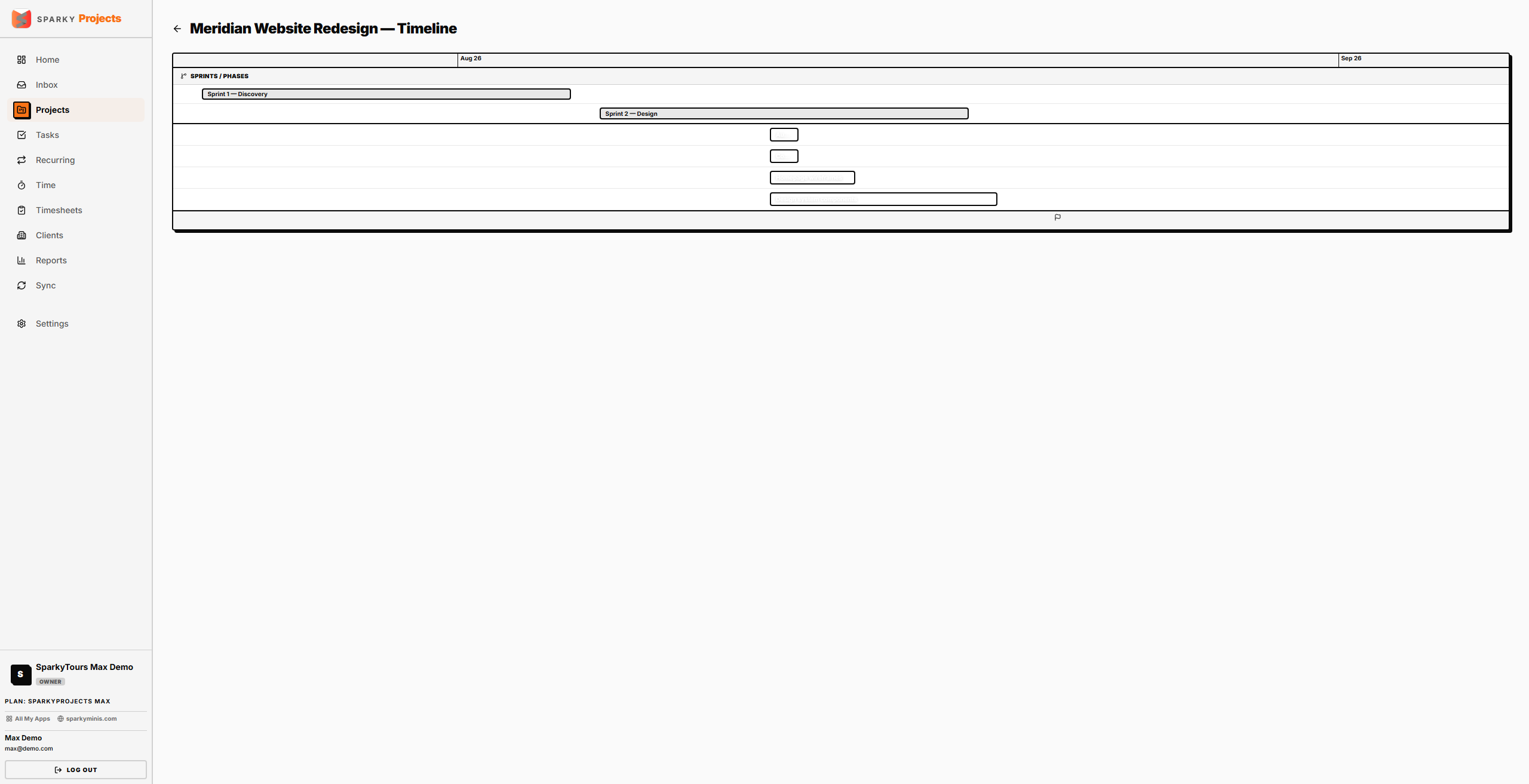
If your plan includes Timeline view, open a project and switch to Timeline to see its tasks, milestones, and iterations laid out by date, including any task dependencies you've set up (if your plan includes Task Dependencies).
How to attach a file to a project
From a project's detail page, upload a file. If your plan has a storage limit, uploads that would exceed it are blocked with an upgrade prompt. Remove an attachment the same way.
AI project-health and risk-analysis summaries also exist for this data — see Home.