
Recurring Tasks
Set up a task template that automatically creates a new task on a schedule, instead of recreating the same to-do every week or month. Available on Plus and Max plans.
How to view recurring task templates
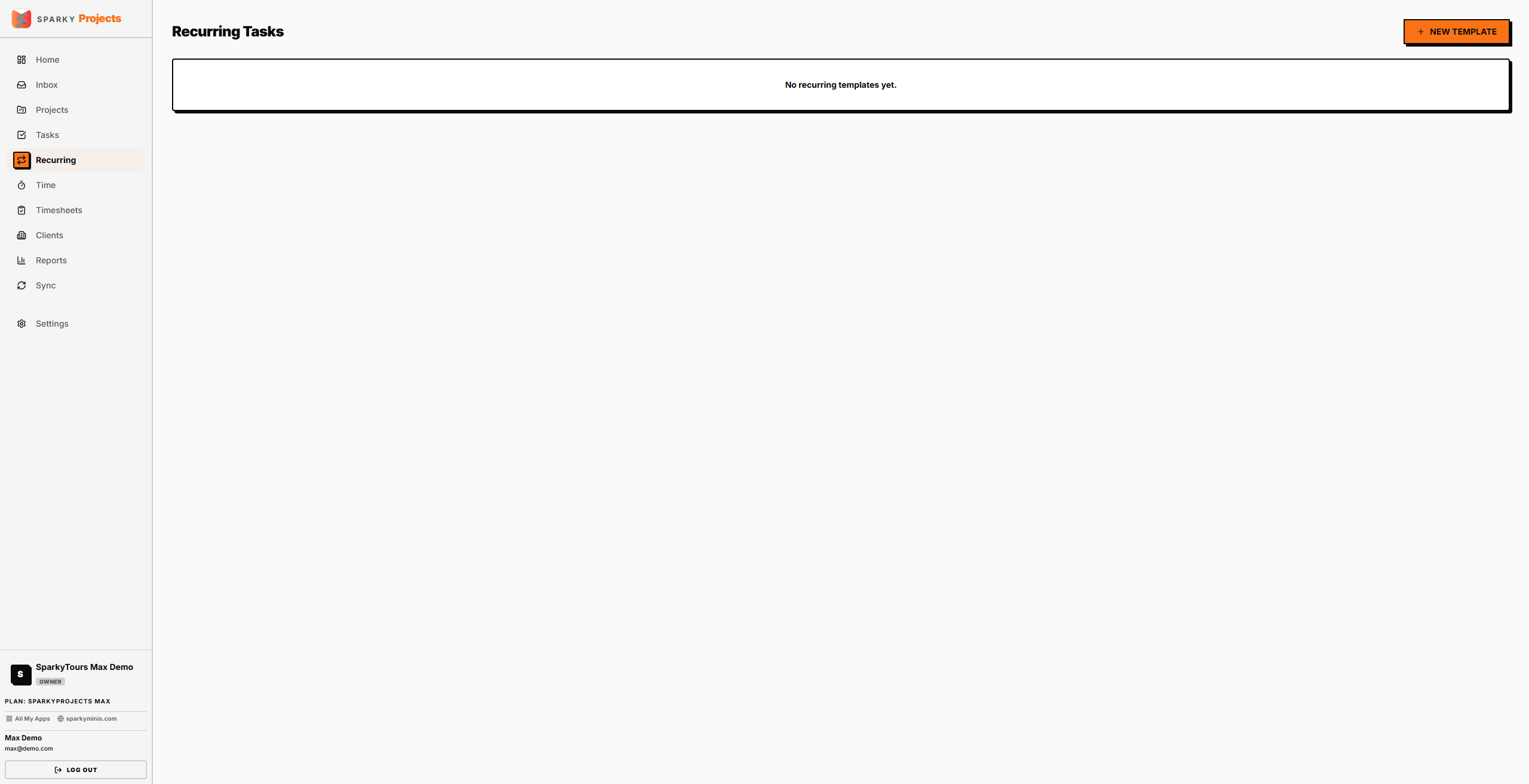
Open Recurring from the sidebar. You'll see every template, its project, cadence, and next scheduled run date.
How to create a recurring task template
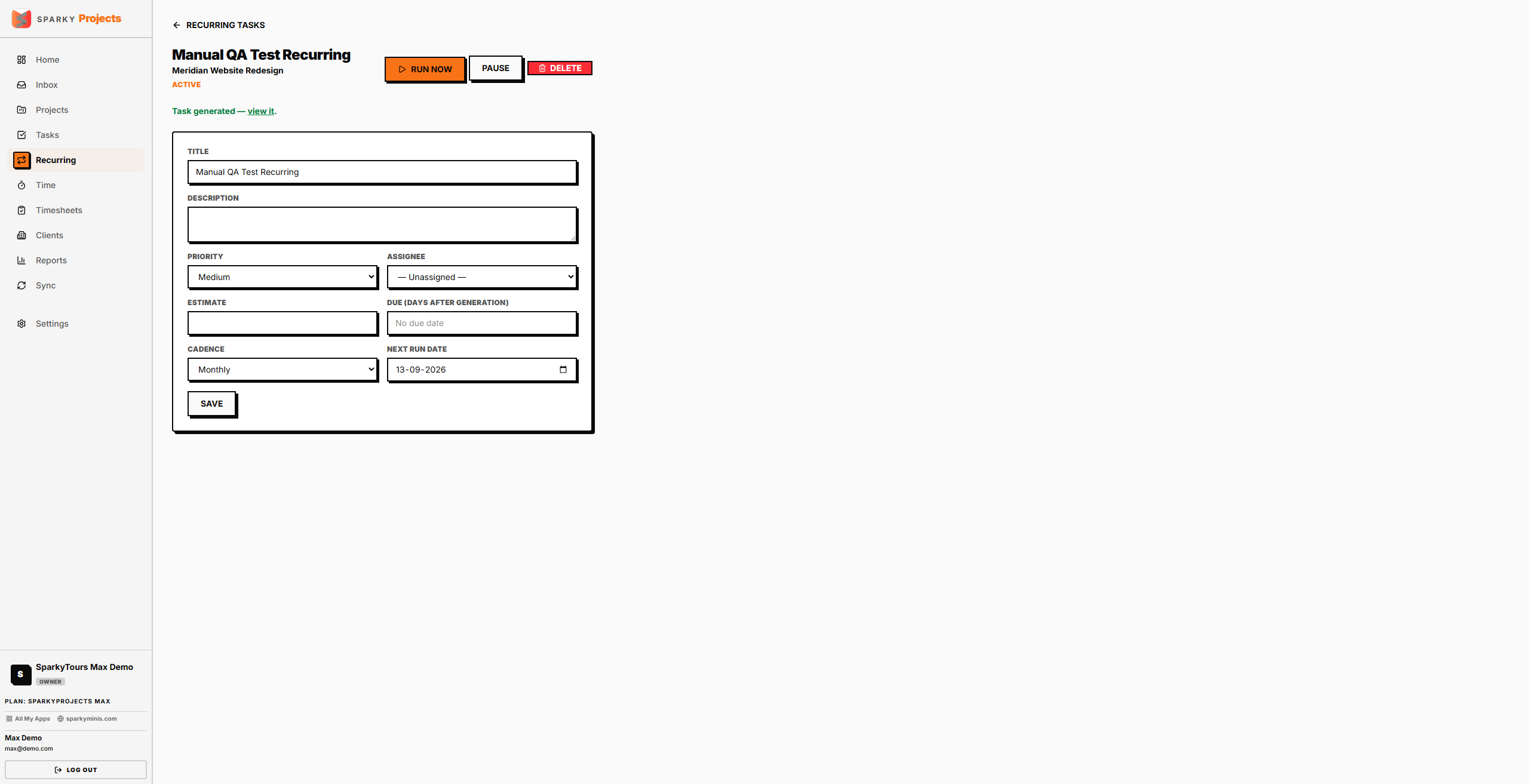
Pick a project (required), a title, priority, cadence (e.g. weekly, monthly), and optionally an estimate, assignee, due-date offset, and starting run date.
How to pause or resume a template
Click "Pause" on a template's detail page to stop it generating new tasks without deleting it — the button becomes "Resume" once paused.
How to view or edit a template
Click a template to open its detail page and change any of its settings.
How to generate a task right now
From a template's detail page, click "Run Now" to generate a task immediately instead of waiting for its next scheduled date — you'll see a link straight to the new task. This also advances the template's schedule the same way the automatic run would, so you don't get a duplicate later.
How to delete a template
From a template's detail page, delete it, then confirm — "